Why Download YouTube Clips?
Downloading a short clip (rather than an entire video) is one of the most practical ways to work with YouTube content—especially when you only need a specific moment. People look for a YouTube clip downloader for one reason: speed. A clip lets you keep the “best 10 seconds” of a long recording without forcing viewers (or teammates) to scrub through the rest.
Clips are useful when you want to review an on-camera take, send a timestamped highlight to a client, or collect examples for a presentation. Teachers often clip a quick explanation from a longer lecture so students can rewatch just that segment. Product teams clip a bug reproduction so engineering can see the issue immediately. Creators clip their own uploads to repurpose long-form videos into Shorts, reels, trailers, or chapter promos.
Quick clarification
“Download YouTube clip” can mean saving a file to your device, or it can mean creating a shareable clip link using YouTube’s built-in Clip feature. The right method depends on your goal and on what rights you have to the content—permission-first is the safest workflow.
Method 1: Using AppsGolem Clip Downloader
AppsGolem is built around a clip-first flow: load a video, define the exact start and end, preview the segment, and export a clean clip. This section assumes a legitimate use case: you’re clipping your own uploads, content with written permission, or content offered for download under a license.
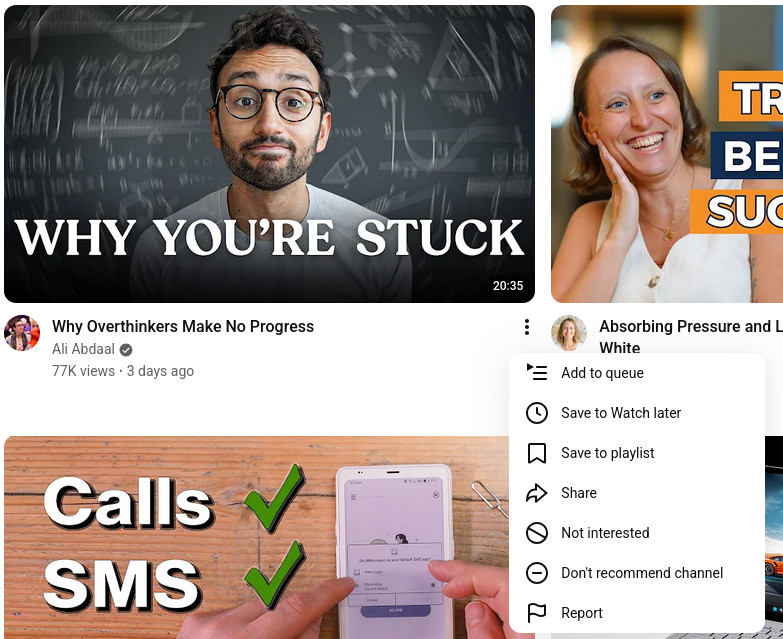
Step 1: Copy the video link
Open the video on YouTube and copy its URL from the address bar or the Share menu. If you’re working for a client or a classroom, keep the permission note (email, license page, or contract clause) alongside the link so your team stays consistent about rights.
Step 2: Paste the link into AppsGolem
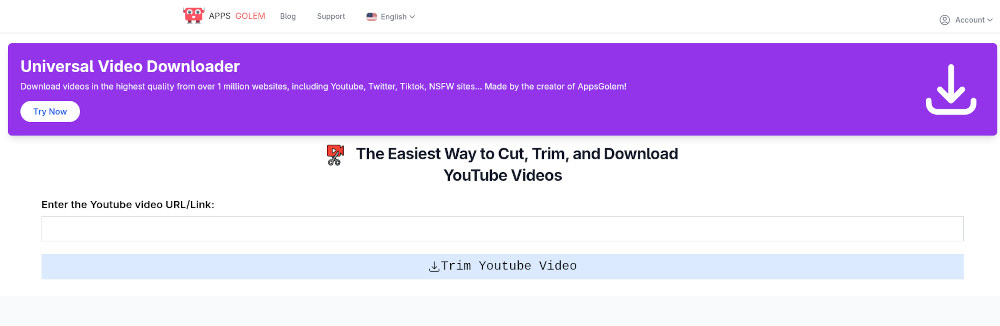
Open the AppsGolem clip tool in your browser and paste the URL into the input field. After the video loads, look for the timeline or timestamp fields. A good YouTube clips downloader keeps the interface focused: one place to set times, one preview, one export action.
Step 3: Set your clip range precisely
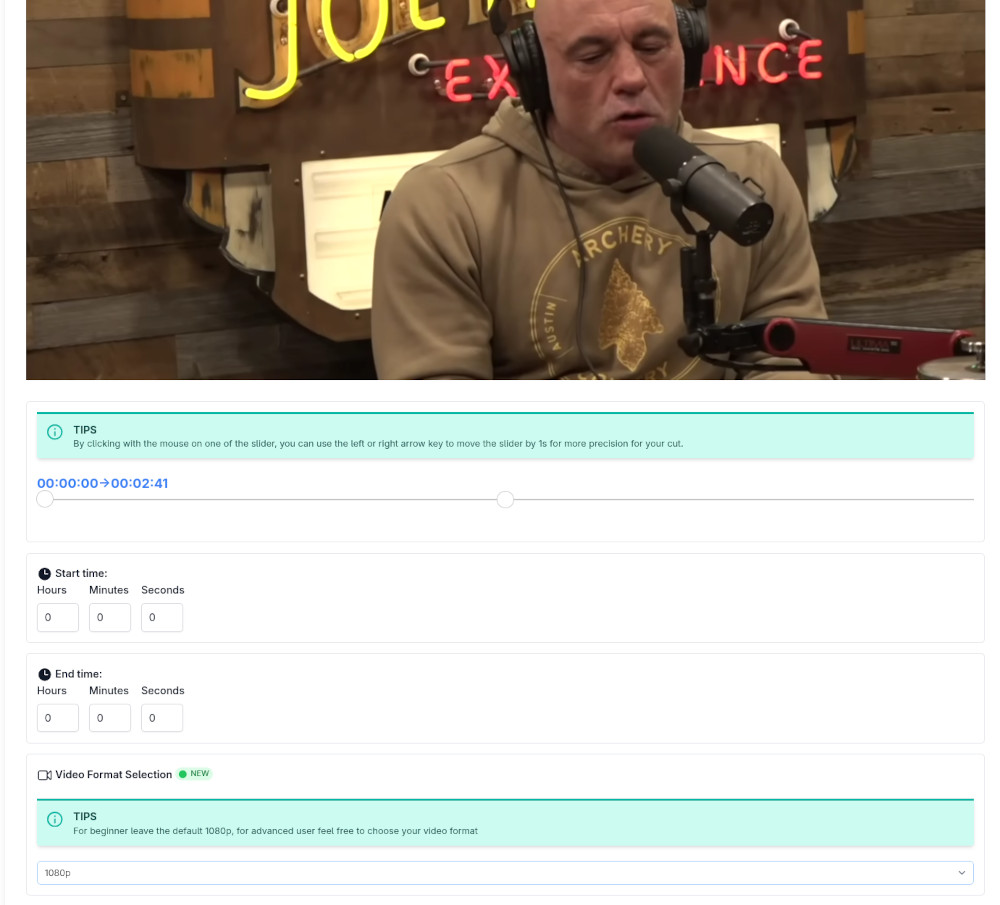
Choose a start time and end time. If you’re capturing a quote, include a short lead-in so the clip doesn’t begin mid-breath. If you’re clipping a reaction, start just before the reaction happens so the viewer understands what triggered it. Then preview the first few seconds and the final frame to confirm you aren’t cutting off words or key visuals.
Timestamp tip
Leave a small buffer (about half a second) at the start and end, preview, then tighten. This produces more natural-sounding cuts.
Step 4: Pick the best export option
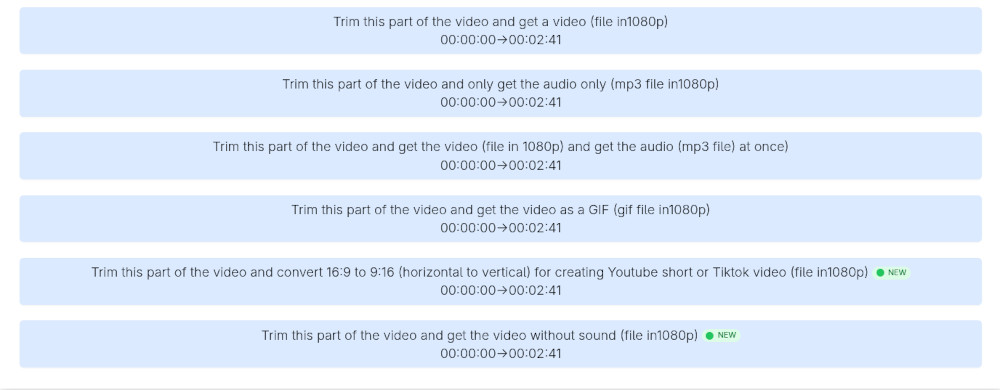
Export as video when you need visuals and context. Export audio when you only need the sound. If quality settings are available, match the original resolution and avoid unnecessary downscaling. This helps your exported clip look consistent when you drop it into a larger edit.
Step 5: Save and organize
Name your file in a way that’s searchable later, like “topic_2026-02-02_01m12s-01m35s.mp4”. If you are producing multiple clips from the same source, keep a simple log with clip ranges and why each clip exists. That single habit prevents a lot of rework.
Method 2: YouTube’s Built-in Clip Feature
YouTube’s Clip feature is excellent for sharing a specific moment, but it’s not the same as downloading a file. When Clips are enabled on a video, you can choose a short segment, add a title, and generate a unique link that plays only that excerpt. It’s fast, official, and ideal for collaboration—especially when your goal is “send this moment to someone.”
How it works
- Open a YouTube video that has Clips enabled.
- Click or tap Clip.
- Adjust the segment and title the clip.
- Create the clip and share the link.
Limitations
- Not available on every video (creators can disable it).
- Optimized for sharing, not exporting a file.
- Clip length is limited.
- Not a replacement for production editing workflows.
When to use this method: If your goal is to share a moment with a teammate, audience, or client, the built-in Clip feature is quick and official. If your goal is offline editing or archiving, you’ll usually need an official download path or creator permission.
How to Clip and Download YouTube Videos
Below are practical “clip first, then download (where allowed)” workflows. The key is to decide whether you’re sharing a clip link or exporting a file for offline use.
Desktop tutorial
- Decide whether you need a link or a file. If you only need to show a teammate the moment, use YouTube’s Clip feature and share the link. If you need an offline file (for your own content or licensed content), plan an export workflow.
- Create the clip boundaries. Use the Clip feature for sharing, or set start/end timestamps inside AppsGolem when exporting is allowed.
- Preview carefully. On desktop, jump around and confirm the first and last frames. Many “bad clips” are simply cut too tight at the end.
- Export or share. Share the clip link for review. Export a file only when you have rights, and keep the file name consistent with your project naming rules.
Mobile tutorial
- On iPhone or Android, start with the Clip button in the YouTube app if it’s available. This is the quickest way to make a shareable excerpt.
- For file-based workflows, rely on your originals. Creators should keep original uploads or project exports in cloud storage so they can trim and export without relying on streaming sources.
- If you’re using a browser-based tool on mobile for permitted content, paste the URL, set the timestamps, preview, and export. Use Wi-Fi when possible to keep the process smooth.
- Share smartly. If your audience only needs to see the moment, send the clip link. If they truly need an offline file (for a licensed edit), export once and reuse that asset.
Troubleshooting and quality tips
If your exported clip starts too late or ends too early, move the trim points slightly and preview again. Spoken words and music beats are sensitive to tight cuts, so a small lead-in and lead-out often makes the clip feel professional. If audio pops at the cut point, shift the start or end by a tenth of a second; some encoders handle cuts better near keyframes.
If the clip looks softer than expected, check your export resolution and avoid exporting smaller than the source unless you need it. When you plan to edit further, export at the highest practical quality first, then compress at the final delivery step.
Best YouTube Clip Downloaders Compared
The best option depends on your goal: share, export, or preserve quality. AppsGolem is optimized for clip selection and export for permitted content. YouTube Clips is optimized for official sharing. Creator-provided downloads and original project exports are the gold standard for rights clarity and quality.
| Option | Best for | Offline file? | Pros | Cons |
|---|---|---|---|---|
| AppsGolem Clip Downloader | Clip selection + export (permitted content) | Yes | Fast flow, clip-focused UI, export options | Requires permission/rights to use content |
| YouTube Clip feature | Sharing a short excerpt | Usually no (link-based) | Official, quick, ideal for collaboration | Not on all videos, limited length, no file export |
| Creator-provided downloads | Licensed/permitted reuse | Yes | Clear permission, often best source quality | Not always offered |
| Original project exports | Creators who want maximum quality | Yes | Full control, avoids streaming recompression | Requires access to originals |
Expanded comparison notes
AppsGolem is best when you want a simple “define range → preview → export” workflow for permitted content and you don’t need a full timeline editor. YouTube’s Clip feature is best when your goal is official sharing and discussion. Creator-provided downloads are best when you need explicit rights and a clean source. Original project exports are best for creators who want maximum quality and control.
Legal Considerations
Downloading and reusing video can raise copyright and contract issues. The safest scenarios are: your own uploads, videos with explicit permission, and content offered for download under a license. “Fair use” may apply in some contexts such as commentary, criticism, reporting, or teaching, but it’s fact-specific and varies by jurisdiction. If the clip is for a business, a course, or anything public-facing, treat rights as a first-class requirement and document your source and permission.
Rule of thumb: If you wouldn’t feel comfortable emailing the creator explaining how you got the clip, choose an official or permission-based method instead.
FAQ
Quick answers for people searching youtube clip downloader, clip youtube video, and download YouTube clip.
What is a YouTube clip downloader? + −
A clip downloader is a tool or workflow used to save a short segment for offline use—ideally from content you own, licensed content, or content you have permission to use.
Can I download YouTube Clips from the Clip feature? + −
The Clip feature is usually link-based for sharing. If you need a file, use official download paths for content you own or have permission to reuse.
How do I clip YouTube video moments quickly? + −
Use the Clip feature for a shareable link, or use a clip tool with timestamp controls for permitted exports.
Can I do YouTube clips download without losing quality? + −
The best quality comes from original files or creator-provided downloads. Avoid unnecessary re-encoding when possible.
Why can’t I download some YouTube clips? + −
Some videos disable Clips, some content isn’t offered for download, and permissions may not allow offline export.
What’s the difference between a clip link and a downloaded clip? + −
A clip link is a shareable excerpt that plays on YouTube; a downloaded clip is a file saved to your device for offline use (when permitted).
Is a YouTube clips downloader safe? + −
Prefer reputable tools, avoid sites that ask for excessive permissions, and prioritize official downloads or creator permission.
Can I download YouTube clip on iPhone or Android? + −
You can share clip links from the YouTube app; for offline files, use official downloads or export from your own originals.
Conclusion
The simplest path is: use YouTube’s Clip feature when you only need sharing, and use official or permission-based options when you need an offline file. If you’re working with content you own or have permission to use, AppsGolem provides a fast clip-first workflow that keeps things simple.
Reminder: Always use clips in ways you’re allowed to—your own uploads, licensed content, or explicit creator permission.